
Edit. Verify. Share. Sign.
Follow the steps within one platform. The diagram explains the workflow; the captures below show existing Vault, verification and signing screens, rather than an invented PDF-editing interface.
- Secure Vault
Upload files of any type. Sync them with desktop folders on eligible plans, with your team’s access permissions in place.
- Create & edit PDFs
Create an editable document in your Vault and generate its PDF, or reopen its editable source in your browser.
- Verify identity
Choose passkey confirmation, with official identity evidence where eligible.
- Keep the proof
Download evidence for supported uploaded files and saved PDF versions.
- Deliver or sign
From the Vault, send securely or request a signature.
Start with a document your Vault can edit.
Create a document in the Vault or reopen one with a compatible We Secure Data editable source. Edit formatted text, lists, links and images in your browser. Save draft retains the editable source; Save PDF & Close generates the PDF and returns you to the Vault. Arbitrary uploaded PDFs and scans are not general-purpose editing inputs.
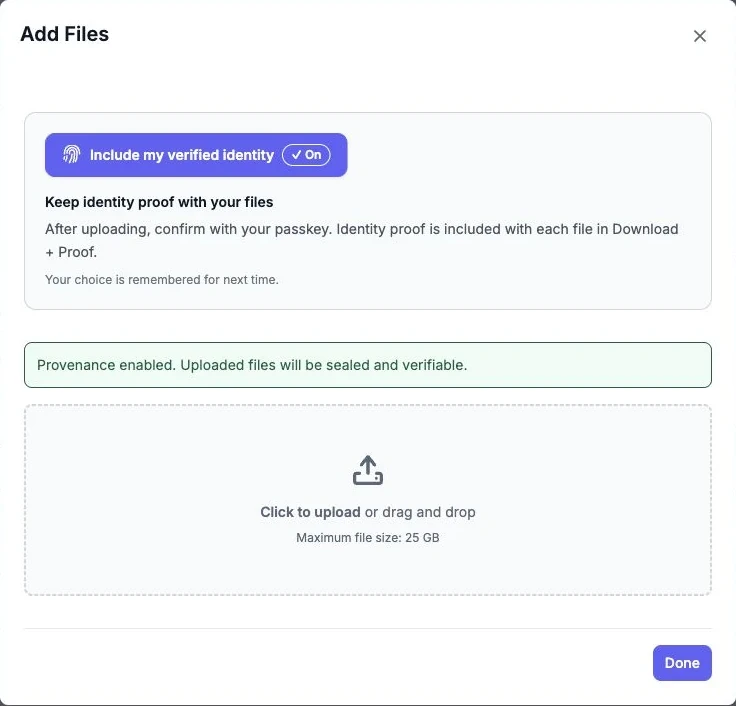
Save with identity inclusion
Existing product capture: identity inclusion for a Vault upload. The supported PDF save uses the same passkey evidence model.
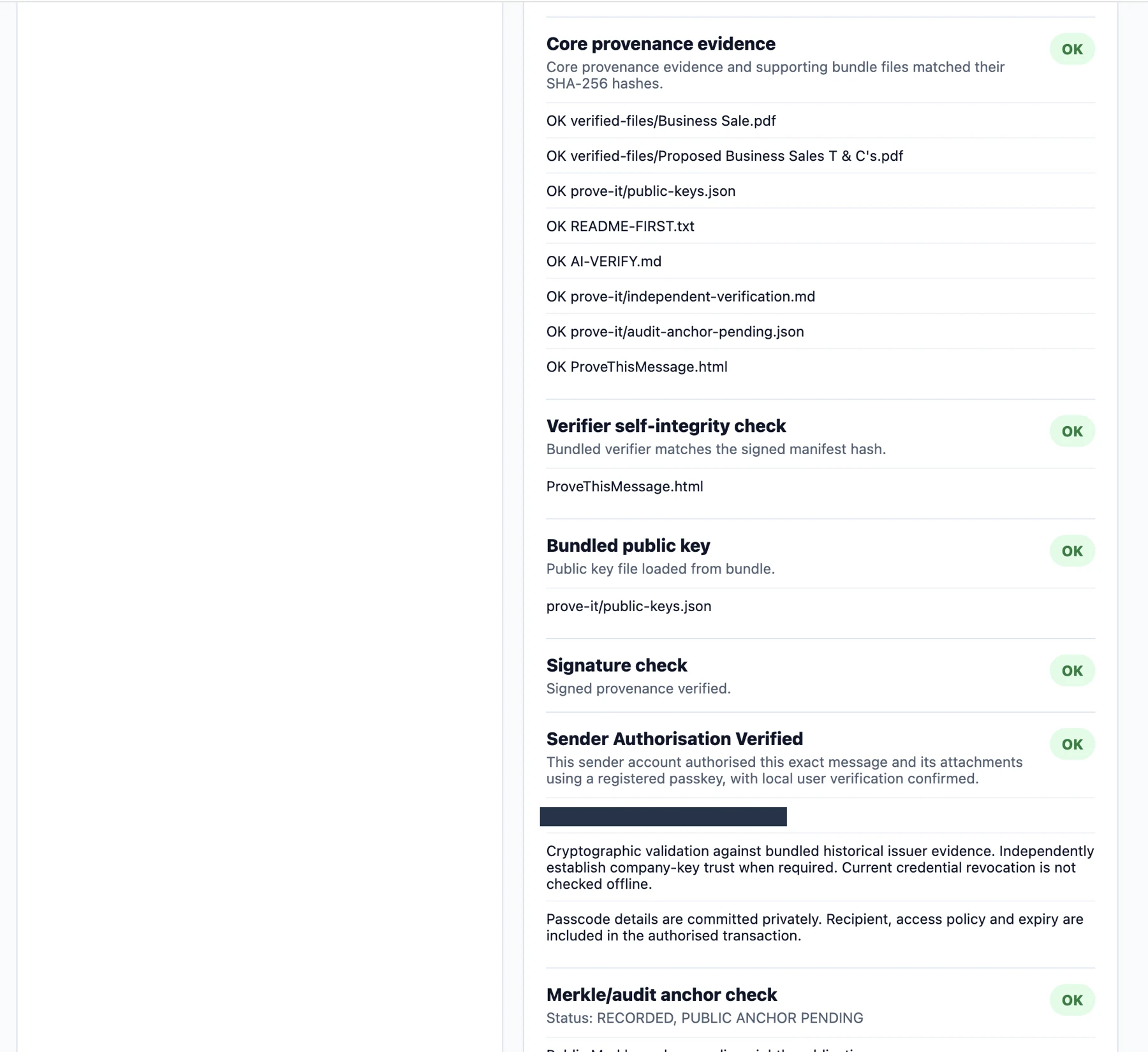
Keep independent verification materials
Existing product capture: offline evidence checks. Use the proof for the exact saved PDF version.
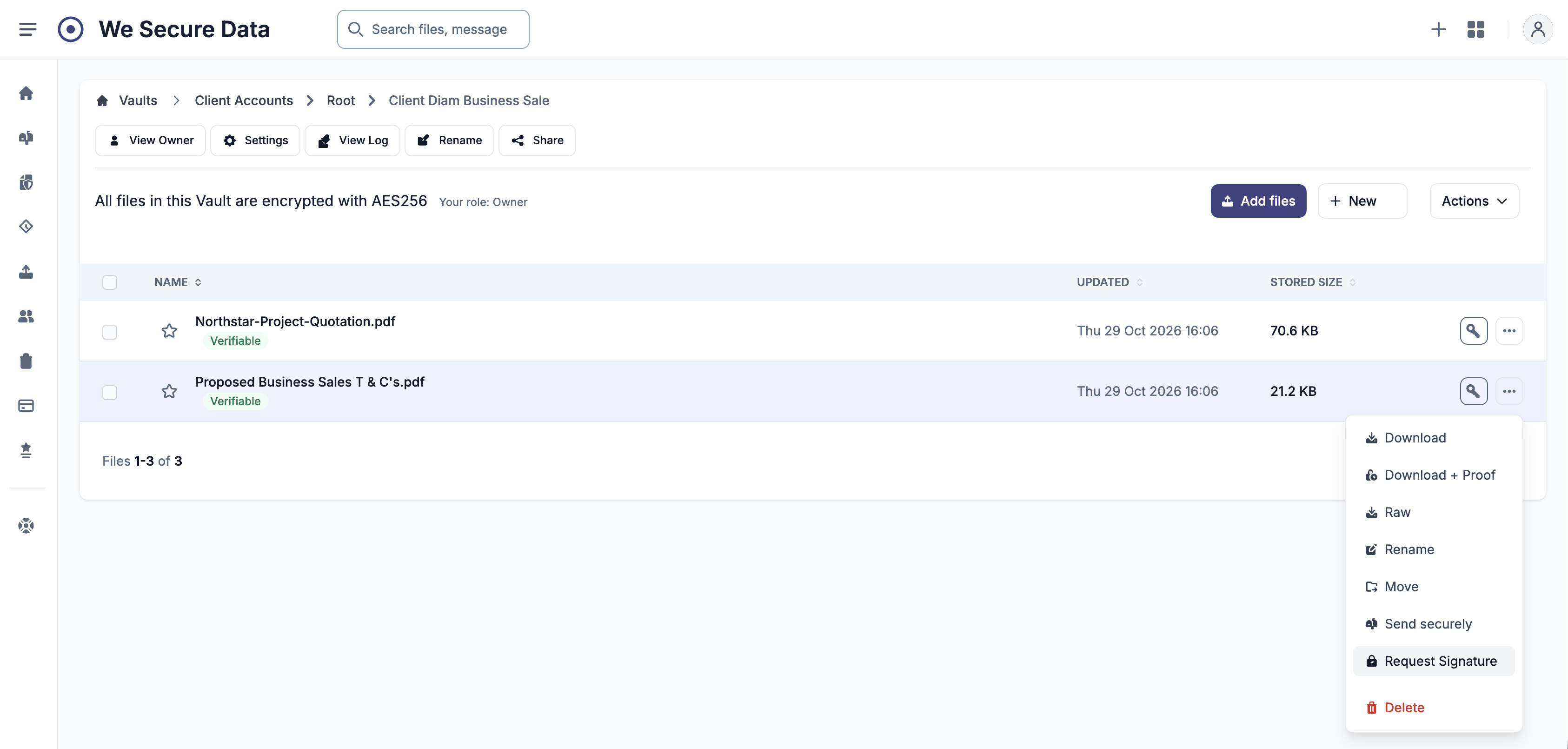
Start a signing request from the Vault
Existing product capture: a Vault file used in the signing workflow. Save the PDF before choosing its next action.
One platform, distinct evidence for each action.
Choose identity inclusion when generating the PDF to authorise that exact saved version. Download its supported proof, then use Send securely or request a signature from the Vault. A recipient’s signature is its own explicit approval, not a consequence of the author’s passkey save.