
Your client uploads
They open your branded File Drop page and submit their documents through the secure browser form.
Bring secure Vault files into familiar folders on Windows and Mac. Turn File Drop submissions into documents your team can get straight to work on.
Connect a File Drop page to a Vault, then sync that Vault with the desktop client. Completed submissions flow into the chosen Vault and appear automatically in the connected desktop folder—no inbox hunting, manual download or repeated filing.
Included with Professional and Business. Get the desktop client from your signed-in account.
Set the destination once. Keep your desktop client connected and running. Let We Secure Data handle the route from customer submission to the folder your team works in.
They open your branded File Drop page and submit their documents through the secure browser form.
Your configured File Drop destination routes the completed submission into the selected Vault.
We Secure Data Sync brings the authorised Vault content to its connected folder on your Windows PC or Mac.
Open the documents from Explorer or Finder, with the submission’s related information organised alongside them.
Connect each File Drop page to the Vault that fits the work. Incoming submissions are organised into dated folders with their uploaded documents and message summary.
With that Vault selected for desktop sync, the connected computer receives the files automatically. The actual File Drop-to-desktop walkthrough shows the route and its verified sync outcome.
Follow the complete submission journey →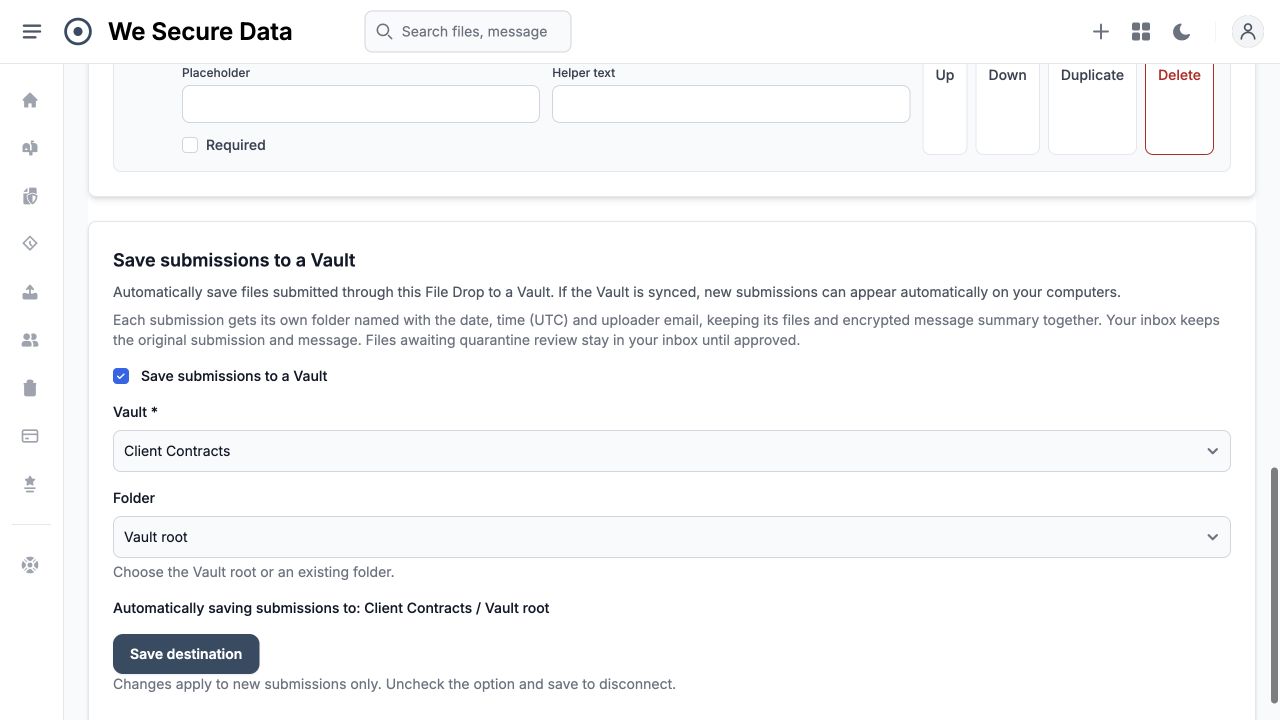 Actual product capture · File Drop routing into a Vault →
Bring authorised Vaults into ordinary desktop folders. Use Explorer, Finder and your everyday applications to work with the files.
Download Vault content and, where your organisation enables uploads, sync local work back to the Vault. Your team stays connected through the shared workspace.
Vault permissions and desktop sync policies govern access, downloads, uploads, offline files and how local deletions are handled.
Your connected desktop client applies the sync settings authorised for your device and Vaults.
Install the desktop client from your signed-in account, sign in and approve the device, then choose the Vaults you want to sync. Connect your File Drop pages to the appropriate Vault destinations.
Read the Vault sync guide →Use the Explorer and Finder integrations to turn desktop files into protected exchanges with cryptographic proof.
Explore Desktop Integration →Connect secure collection, organised Vaults and the desktop folders your team already uses.